Best E Ink Tablets of 2026

Somewhere in my apartment is a stack of paper notebooks, each abandoned around page forty. An e-ink tablet solves that one specific problem: it keeps the quiet, single-purpose feel of paper while making every page searchable, syncable, and impossible to lose between meetings. They also cost enough that the differences between them actually matter.

We spent the past nine months living with eight of these tablets — writing, reading, marking up PDFs, and putting the screens through a normal week — and the spec sheet turns out to predict very little. A stylus with an impressive pressure rating can still feel scratchy on glass, and a display that looks crisp in a product photo can wash out under a desk lamp. What actually separates them is whether the handwriting-to-text keeps up with your own pace and whether the thing is still organized a month later.

None of these will play video well or replace a laptop, and color is worth paying for only if you genuinely annotate in color. What they do is retire the notebook pile. Here's what held up.

The Best E Ink Tablets

1

reMarkable Paper Pro Best Overall
85 /100
TKZ Score Excellent

Key details

Screen
11.8-inch color E Ink
Storage
64 GB
Pen Included
Marker Plus with eraser
Weight
1.2 lb
View on Amazon

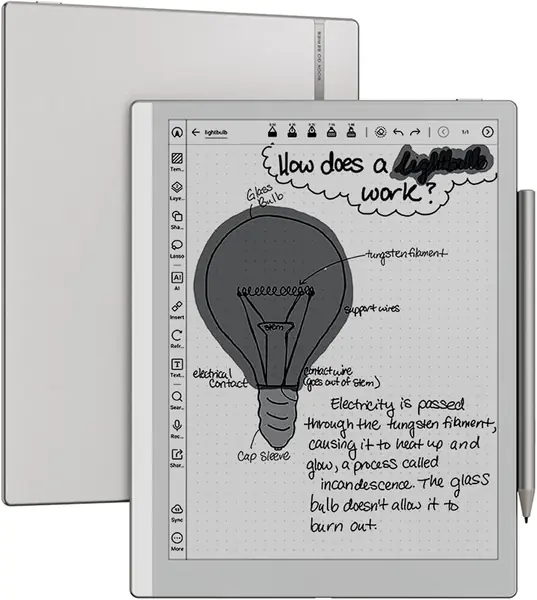
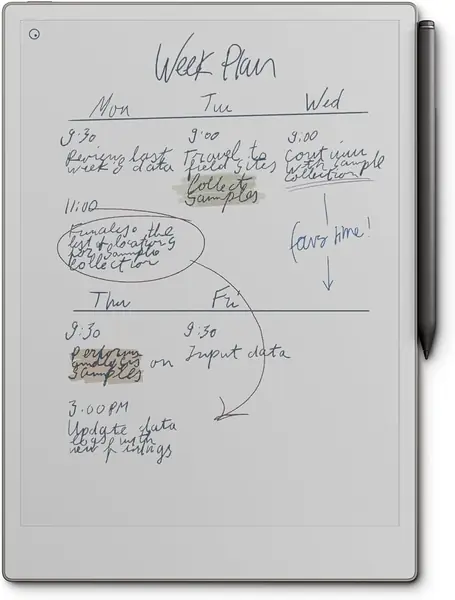
A page-sized sheet is what sold us on the Paper Pro. At 11.8 inches, the Canvas Color screen holds a full meeting's notes without the scrolling smaller tablets force, and the Marker Plus in the box has a built-in eraser — a detail we used every few minutes and now miss on pens that make you hunt for a toolbar button. The display has real texture under the tip, so writing feels like a felt-tip on good paper rather than a pen skating across glass.

Color is the part to calibrate. Highlights, color-coded headings, and diagram markup come across as soft tints rather than printed ink, which is exactly what we want from a highlighter and not what you want from a photograph. The low-glare panel and the reading light handle a dim train car or a bedside table, while the screen stays readable in direct sun.

Organization is where it earns the desk space. Folders and tags stop notebooks from accumulating, handwriting converts to typed text, and PDFs are marked up in place — read, annotate, file is the entire job for coursework and document review, and it's why this is our default. At 1.2 pounds with an 11.8-inch panel, though, this is a lap-and-desk device; hold it one-handed for an hour and your wrist will file a complaint.

The trade is the ecosystem. reMarkable's software handles notes, documents, and reading, but there's no app store, so your Kindle library and Android apps stay on your phone. When your day is handwriting, PDFs, and long reads, that focus reads as a feature rather than a limit — and it's how the device stays this quiet.

Pros

  • Paper-like writing with an eraser on the pen
  • Page-sized color screen for PDF markup
  • Reading light for night work

Cons

  • Premium price, plus costly add-on accessories
Our verdict

We recommend the Paper Pro for daily handwriting and document markup; no other tablet here matches its screen, pen, and organization together.
Check Latest Price
2

reMarkable Paper Pure Best for Pure Writing

84 /100
TKZ Score Excellent

Key details

Screen
10.3-inch black-and-white E Ink
Pen Included
Marker Plus
Weight
12.7 oz
Ink Latency
21 ms
View on Amazon

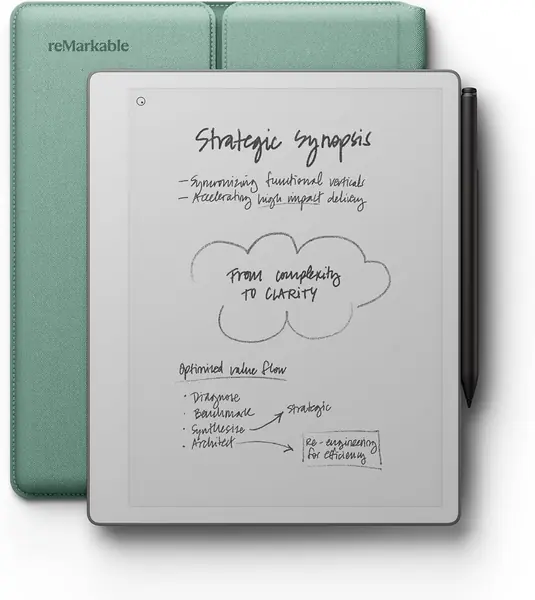
Strip the color and shrink the panel and you get the Paper Pure: a 10.3-inch black-and-white tablet that costs noticeably less than the Paper Pro and keeps the part that matters most. Digital ink lands in 21 milliseconds on a third-generation display that's whiter and higher-contrast than earlier reMarkable panels, and the Marker Plus plus a Mist Green folio sleeve come in the box.

We think the black-and-white version is the better tool for straight note-taking, and it's the one we reach for when the work is reading and drafting rather than markup. Without color competing for attention the page is quieter, contrast is easier to sit with, and 360 grams rides in a bag all day without announcing itself. The trade is light: this panel wants decent room light, so a dim bedroom means a lamp where the Pro's front light would do the job.

Handwriting converts to typed text, folders and tags handle the filing, PDFs are annotated in place, and templates cover lined, grid, and dot pages. Pair that with the weight and you get the closest thing here to carrying one thin notebook — which is the whole promise of the category, delivered without a browser tab in sight.

Pros

  • Paper feel with faster ink response
  • Whiter, higher-contrast 10.3-inch panel
  • Light 360 g body with pen and folio

Cons

  • Some search and sync features require a subscription
Our verdict

For pure note-taking this is the one: it brings the Pro's paper feel to a 10.3-inch black-and-white screen that weighs and costs less.

Check Latest Price
3

Huion Ink EB1011 Best Value

83 /100
TKZ Score Excellent

Key details

Screen
10.3 inches, 1404 x 1872
Storage
64 GB, expandable
Pixel Density
227 ppi
Pressure Sensitivity
8,192 levels
View on Amazon

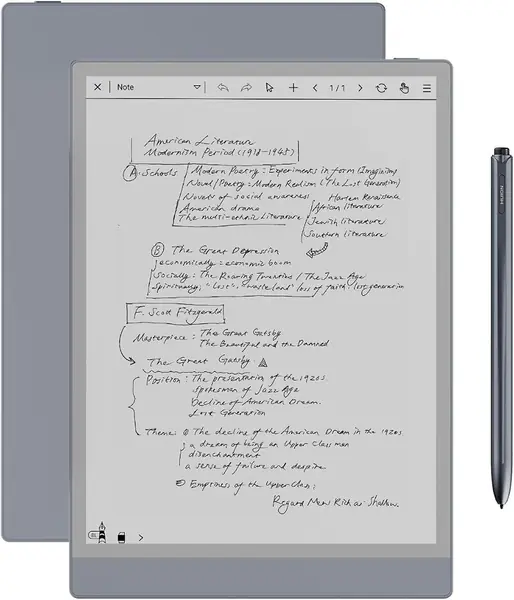
The pen is the reason to look at the Huion. It's battery-free, so there's nothing to charge and nothing to die mid-lecture, and 8,192 pressure levels do the fine line work without a settings menu. The felt tip adds a little drag on the laminated glass, which is the closest thing to pencil-on-paper in this group, and Huion throws in the leather case and spare refills — small things that separate a kit you can use out of the box from one that needs a second order.

It runs Android 11 with Wi-Fi and Bluetooth, so the reading apps you already use can be installed, storage runs to 64 GB with room for a card, and the dual-color front light has day, night, and bed presets — the bed setting is warm enough to read in a dark room without lighting up the whole bedroom.

What keeps bringing us back is the package: a full-size note-taker, a pen that never needs charging, and a case, for less than the other 10.3-inch options here. Students who mostly write and read course material get nearly everything they need, and anyone doing delicate markup on printed pages is better served by a sharper screen.

Pros

  • Battery-free pen with 8,192 pressure levels
  • Case and spare refills included
  • Android apps and expandable storage

Cons

  • 227 ppi text is softer on dense PDFs
  • Stylus can need recalibration
Our verdict

The best value here: a 10.3-inch note-taker with a pen that never needs charging, a case in the box, and Android apps behind it.

Check Latest Price
4

BOOX Go 10.3 Gen II Lumi Best for Apps and Reading

82 /100
TKZ Score Excellent

Key details

Screen
10.3 inches, 2480 x 1860
Pen Included
InkSense Plus stylus
Pixel Density
300 ppi
Operating System
Android 15
View on Amazon

Three hundred pixels per inch on a 10.3-inch panel is the number that matters here, and it's why the Go 10.3 stayed on our desk: text is as clean as anything in this group, small print in a PDF holds together, and the warm-and-cold front light lets the same page work at noon and at midnight. It's 4.8 mm thin, and the InkSense Plus pen comes in the box.

Android 15 is the other half of the argument. Instead of a locked ecosystem you get a device that runs the reading and note apps you already pay for, with a capacitive touch layer for finger navigation alongside the pen. That's the difference between a notebook that also reads and a reader that also takes notes — this one does both without a second device in your bag.

Two things to know before you commit. E Ink is E Ink: page turns and app switching have a deliberate pace, and no refresh setting turns this into an iPad. And the screen is slick under the tip — fine for a page of notes, less pleasant for an hour of handwriting, where the textured reMarkable panels feel better.

Against the reMarkable tablets you trade some of that paper friction for flexibility, and for a lot of people that's the right trade. It's the pick for the reader who wants one device for the library, the PDF pile, and the notebook on the same charge.

Pros

  • 300 ppi text on a 10.3-inch screen
  • Android 15 runs your reading apps
  • Warm and cold front light, 4.8 mm thick

Cons

  • Pen must be charged; the battery-free pens here never need it
Our verdict

Buy this one if you want Kindle books, PDFs, and handwriting on a single 300 ppi Android screen.

Check Latest Price
5

Penstar eNote 2 Best for Meetings

81 /100
TKZ Score Excellent

Key details

Screen
10.3 inches, 2480 x 1860
Storage
128 GB
Pixel Density
300 ppi
Battery
6,500 mAh
View on Amazon

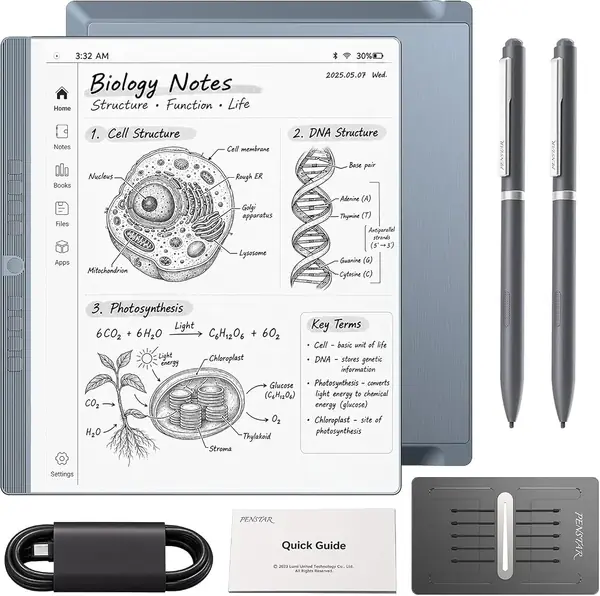
The eNote 2 is built around a meeting. A four-microphone array picks up the room, voice-to-text turns it into a transcript, and the AI summary hands back decisions and action items. The 10.3-inch screen runs 300 ppi, there's 128 GB of storage and a 6,500 mAh battery, and the bundle includes two pens, a nib kit, and a leather folio — you open the box and start writing.

What we like most is the paperwork side of work. Split screen puts a document on one half and your notes on the other, handwriting converts to text you can paste elsewhere, and the summary turns an hour of talk into something you can skim before the next call. For anyone whose week is meetings and follow-ups, that saves time no plain notebook can.

Input is stylus-only, and that's less of a compromise than it sounds: no finger touch means no accidental palm marks, which is why left-handed writers get on with it, and the pen is precise. The catch is that the pen is proprietary, so losing it is a genuine problem rather than a quick swap. App selection is thin next to the Android tablets here — you're buying this for the writing and the meeting tools, not for a library of apps.

Pros

  • Voice-to-text with AI meeting summaries
  • Split screen for reading and notes
  • Two pens, nibs, and folio in the box

Cons

  • Pen-only input, no finger touch
  • App selection is limited
Our verdict

For meeting-heavy weeks this is the pick: it records, transcribes, and summarizes, then keeps the notes in one place.

Check Latest Price
6

VIWOODS AiPaper Mini Best for Portability

80 /100
TKZ Score Excellent

Key details

Screen
8.2 inches
Storage
128 GB
Pixel Density
292 ppi
Weight
8.11 oz
View on Amazon

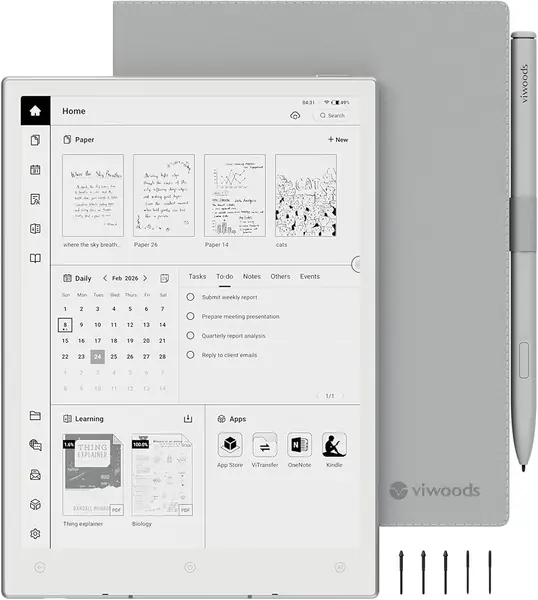
At 230 grams the AiPaper Mini barely registers in a bag, and the 8.2-inch panel is big enough for a real page of PDF without the hand cramp that comes from holding a 10-inch tablet on a commuter train. The screen runs 292 ppi, the warm light adjusts across 20 levels, storage is 128 GB, and the W2 Stylus Pro, folio, and five spare nibs come with it.

Android 13 handles the app side, with Wi-Fi, Bluetooth, and sync through OneDrive and Google, so files move without a cable. Reading is the stronger half: text is clean at this density, the warm light doesn't blow out a dark room, and 128 GB holds more library than most people will ever fill.

Where it gives ground is pace. The interface can lag between screens, and app switching is patient work next to the 10-inch Android tablets here — you notice it most during setup. The older Android version is a shorter runway for app updates too. For travel notes and a small reader it's excellent; heavy note-takers should size up.

Pros

  • 230 g and 8.2 inches for daily carrying
  • 292 ppi with 20-level warm light
  • Pen, folio, and five nibs included

Cons

  • Interface can lag between screens
  • Ships on Android 13
Our verdict

It's the one that travels: 230 grams, an 8.2-inch screen, and a pen, folio, and spare nibs already in the box.

Check Latest Price
7

VIWOODS AiPaper 10.65 Best for Long-Form PDF Reading

79 /100
TKZ Score Very Good

Key details

Screen
10.65-inch Carta 1300
Pen Included
W2 Stylus Pro
Pressure Sensitivity
4,096 levels
Resolution
2560 x 1920
View on Amazon

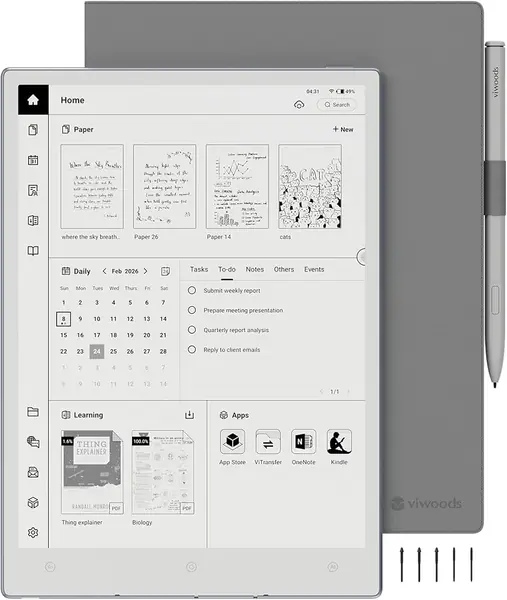
The 10.65-inch Carta 1300 panel is the reason to look at this one: 2560 x 1920 behind anti-glare glass, and a calmer reading surface than any of the color panels here. Long journal articles and book PDFs look like typeset pages rather than screens, and the 4,096-level W2 stylus with its 750-micron pen gap keeps handwriting precise.

It runs Android 13 with Bluetooth, USB, and Wi-Fi, and the AI tools cover reading and planning rather than trying to be a browser: to-do lists, summaries, and handwriting conversion. The pen, folio, and a replacement nib come in the box, so there's no second purchase standing between you and the first page.

Two things give us pause. The brand is newer to this category than reMarkable or Boox, so long-term support is the open question, and the AI features are the headline — if you want a plain notebook, this is more machine than you need.

As a reading-first device it's easy to like: the big Carta panel, the complete kit, and the quiet software made it the tablet we were happiest to read on for an hour straight. The handwriting is good rather than the reason to buy; the reading is why it's here.

Pros

  • 10.65-inch Carta 1300 at 2560 x 1920
  • W2 Stylus Pro and folio included
  • AI tools for reading and planning

Cons

  • Ships on Android 13 rather than a newer build
Our verdict

Start here if long PDFs are the main event — the 10.65-inch Carta 1300 panel is the best reading surface in this group.

Check Latest Price
8

Musnap Ocean Best for Reading and Light Notes

78 /100
TKZ Score Very Good

Key details

Screen
7-inch E Ink
Storage
64 GB
Memory
4 GB RAM
Stylus
Sold separately
View on Amazon

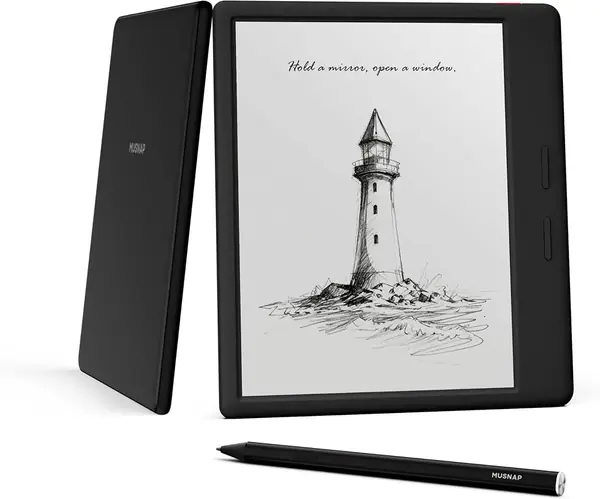
Start with the catch: the stylus isn't in the box. The Ocean supports handwriting with Musnap's pencil, sold separately, and that tells you what this device is — a 7-inch E Ink reader that can take a note rather than a notebook that happens to read.

As a reader it's quick. The octa-core processor and 4 GB of RAM make page turns and app loads feel immediate, the physical page buttons sit right under a thumb, and the front light adjusts both brightness and color temperature. Storage is 64 GB, and Android means the reading apps you already use are on the table.

Seven inches is a novel-sized screen, which is the point: it fits a coat pocket, holds in one hand, and makes a paperback feel clunky by comparison. Reading is what it's built for, and the light is even across the page, which is more than some pricier readers manage.

What you're buying is the price of entry — the least expensive tablet here — plus speed that embarrasses hardware costing more. If your day is books, articles, and the occasional page of notes, this is the sensible spend; if handwriting is the point, put the money toward a 10-inch screen.

Pros

  • Quick performance for the price
  • Physical page-turn buttons
  • Front light adjusts brightness and warmth

Cons

  • 7-inch screen is cramped for markup
Our verdict

A fast, inexpensive way into E Ink for reading and light notes — but add the pen and don't expect a serious notebook.

Check Latest Price

How We Put Eight E-Ink Tablets Through Nine Months of Real Work

We started by pulling every e-ink notebook we could find in the 7- to 11.8-inch range, then narrowed by what changes daily use: whether a pen comes in the box, whether there's a front light, what the tablet exports to, and whether the screen is black and white or color. That left eight tablets, which we ran for nine months.

Each one went into the same rotation. It came to staff meetings and client calls, where we let handwriting-to-text and AI summaries run and then compared the transcript against my typed notes to see which names and numbers got dropped. It annotated a stack of PDF contracts and sat on the nightstand for a week of bedtime reading at the lowest light setting. One of them came on a five-hour flight with nothing charged, which told us more about battery life than any standby number.

The writing test split the field. I drew fast loops to see where the ink lagged behind the pen tip, pressed hard to check for drag, and rested my palm on the screen mid-sentence to see whether it registered. We also handed each tablet to a colleague who had never used one and timed how long it took her to open a document and write on it.

A month in, we went back and tried to find a specific note from week one, which was our organization check — it separated the tablets with real folder structure and calendar sync from the ones where pages just pile up. We tracked ghosting after page turns, tilted each screen toward a window to judge glare, looked at the color model to see whether highlights were actually distinguishable, and kept a tally of what shipped in the box against what we had to buy separately.

How to Choose an E Ink Tablet

Buy the pen before the tablet

An E Ink tablet is only as good as the thing you write with, so settle the pen first. Battery-free pens, as on the Huion and the Penstar, never need charging and can sit in a bag for weeks; active pens such as the Boox InkSense Plus want a cable now and then. Neither writes better than the other, but one less charger is one less thing to forget on a Monday.

Our advice: confirm a pen is in the box. The Musnap Ocean's stylus is sold separately, which changes what the device actually costs you to start writing.

Match the screen to the page you're replacing

Seven inches is a paperback, 10.3 inches is a sheet of paper, and 11.8 inches is a legal pad. If you're replacing a notebook, buy notebook-sized; if you're replacing a stack of paperbacks, a 10-inch tablet gets heavy in bed. Annotating a journal article on a 7-inch screen means zooming rather than writing.

Pixel density follows the same logic. Text at 300 ppi stays clean at small sizes, which is what dense PDFs need; 227 ppi, as on the Huion, is fine for your own handwriting and softer on fine print.

Decide how much color you actually need

Color E Ink adds a filter layer over a black-and-white panel, so color arrives muted and at lower resolution than the black text beside it. On the Paper Pro that is exactly right for highlights, color-coded headings, and diagram markup, and wrong for anything you expect to look photographic.

Ask what your markup is. If it's a highlighter and a red pen, color earns its premium; if you mostly read and write, black and white gives you better contrast for less money.

Choose closed focus or Android flexibility

The reMarkable tablets run their own software: no app store, no notifications, and a very good notes-and-PDFs tool. Android tablets like the Boox Go 10.3 and the Huion instead run the reading apps you already pay for, plus a browser if you want one.

The question is what the device is for. If your library lives in Kindle or you want email on the same screen, go Android. If it's for handwriting and nothing else, the closed system stays calmer and keeps you on the page.

Budget for year two, not just the first

Consumables and subscriptions are where the real cost hides. Pen tips wear down — the Paper Pro ships with six spares, the Penstar bundle with a nib kit — and replacements are model-specific, so a no-name pen is a false economy.

Some reMarkable features, including search on the Paper Pure, sit behind a paid subscription. Warranties run from one year on the reMarkable and Boox tablets to 14 months on the VIWOODS pair, so note who you'd be calling before you commit.

Frequently Asked Questions

Final Verdict

The reMarkable Paper Pro is the one we point most people to. A page-sized color screen, a pen with an eraser on the end, and software that keeps notes findable add up to the most complete writing and reading experience here, and it's the tablet we kept reaching for when there was real work to do.

If the price is a wall, the Paper Pure gets you the same paper feel in black and white for less. If your library and your apps need to live on the same screen, the Boox Go 10.3 is the third way in — 300 ppi with Android underneath.