Best Wireless Mice for iPad of 2026

An iPad with a keyboard case is almost a laptop — until you reach up and tap the screen to place the cursor. That's when people start shopping for a mouse, and when they find out that not every Bluetooth mouse behaves on iPadOS. One that forgets its pairing every time the screen sleeps, or clicks loud enough to hear in a quiet room, ends up in a drawer. What you want is one that pairs once and stays paired, feels fine all afternoon, and scrolls a PDF without stuttering.

I've used an iPad as a second work machine for years, and I've lost count of cheap mice that dropped connection mid-sentence. Over the past six months, my team and I put 12 wireless mice through ordinary days of email, PDF markup, and too much late-night scrolling, and the gap between a good one and a frustrating one shows up within an hour. Since most iPads have nowhere to plug in a dongle, Bluetooth is the connection that matters, with no fallback. The picks below are the ones I stopped noticing.

The Best Wireless Mice for iPad

1

Logitech M240 Silent Best Overall
91 /100
TKZ Score Outstanding

Key details

Connectivity
Bluetooth, no receiver
Battery Life
1 AAA, up to 18 months
Buttons
3
Weight
2.6 oz
View on Amazon

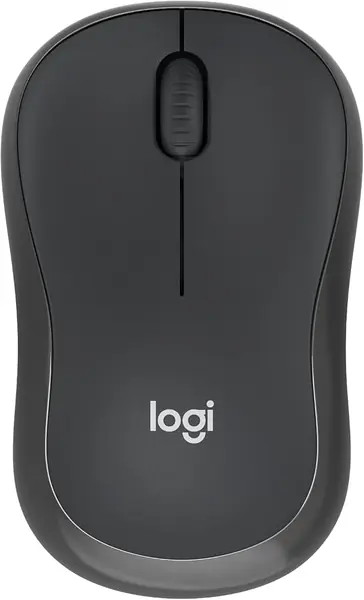
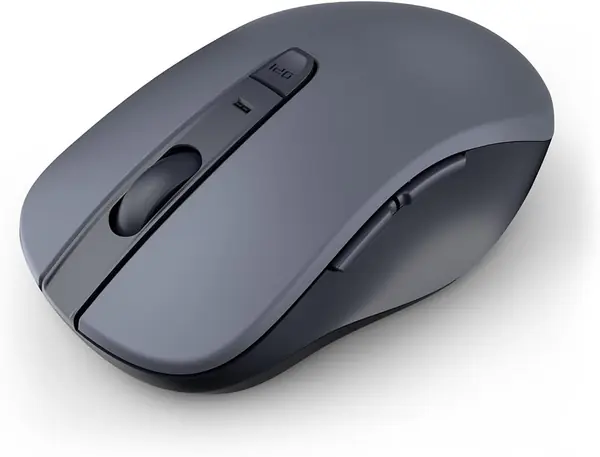
The first job of an iPad mouse is to connect to an iPad, and that means Bluetooth with nothing to plug in. The Logitech M240 Silent handles it in about ten seconds: hold the pair button, tap the mouse in Settings, and the cursor is live. At 73.8 g with a shell small enough to vanish into the pocket of a bag that already holds a tablet, it's the mouse we hand to most people first.

Then there's the noise, or the lack of it. Logitech rates the switches at 90% quieter than a standard mouse, and the click still feels like a click rather than a squash. In the places an iPad actually gets used — a library table, a lecture hall, a shared desk — that's the difference between a mouse everyone hears and one nobody notices. The battery is the other quiet win: a single AAA rated for 18 months, with auto sleep picking up the slack, so you never pack a charging cable for it and you swap a battery about as often as you replace a phone case.

What we don't love is the size. The compact shell is the entire point for travel, but a larger hand ends up with fingers curled under instead of resting on top. There are also only three buttons — left, right, and a clickable wheel — so no back and forward keys when you're moving through Safari. Pairing is the one thing worth watching: iPadOS 17 is on its supported list, yet a unit that never shows up in Settings is worth exchanging rather than troubleshooting. Everything else about it is unremarkable in the best possible way.

Pros

  • Pairs over Bluetooth with no receiver
  • Up to 18 months on one AAA
  • Quiet clicks for shared spaces

Cons

  • Compact shell cramps larger hands
  • No side buttons for back and forward
Our verdict

Our default pick: it pairs with nothing to plug in, clicks quietly enough for a library, and runs 18 months on one AAA in a shell that disappears into a bag.
Check Latest Price
2

Logitech POP Mouse Best for Switching Devices

90 /100
TKZ Score Outstanding

Key details

Connectivity
Bluetooth, 3 devices
Battery Life
1 AA, up to 24 months
Buttons
4, one programmable
Weight
2.9 oz
View on Amazon

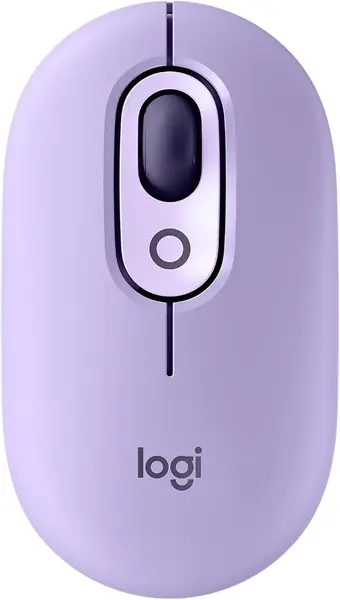
If an iPad and a laptop share your day, the POP's Easy-Switch button is the feature you'll touch most. It holds three pairings, and one press moves the mouse from tablet to laptop and back with no re-pairing and no digging through Settings mid-sentence. The mouse itself is small and slightly domed, with the kind of two-tone finish that doesn't look like office equipment.

It's also the best-liked mouse in this group, and not because of any one specification. The clicks are quiet enough for a coffee shop, the wheel has a light, quick feel, the included AA is rated for two years, and the shape settles under a palm without demanding a grip. The top button is programmable, which is where the catch sits.

The catch is software. Remapping that button runs through Logitech's app, and the compatibility list names iPadOS with no software support attached — so on an iPad you get the button's default behavior rather than your custom shortcut, and the same goes for the fun shortcut modes. The other thing to weigh is price: this one costs roughly double our top pick, and what you're buying is device switching and personality rather than more accurate pointing. On days when the iPad and the laptop both come along, that's an easy trade.

Pros

  • Switches between three devices with one button
  • Two years on a single AA
  • Small, quiet, and genuinely nice-looking

Cons

  • Programmable button has no iPadOS app support
  • About double the price of our top pick
Our verdict

Buy the POP if your iPad shares a desk with a laptop — one button moves between three devices, and it's the nicest-feeling mouse in this group.

Check Latest Price
3

wegear WL300 Best for All-Day Comfort

89 /100
TKZ Score Excellent

Key details

Connectivity
Bluetooth
Battery Life
1 AA, up to 24 months
Buttons
6
Sensitivity
800, 1200, 1600 DPI
View on Amazon

Set the wegear WL300 next to our top pick and the difference is immediate: this is a mouse you hold rather than one you perch on. The shell is sculpted for a right hand, with a raised back and a thumb shelf, and it gives your palm somewhere to land during a long session instead of asking your fingers to do the work.

That shape is the reason to buy it. There are six buttons, forward and back among them, three sensitivity steps up to 1600 DPI, and quiet switches that keep an open office calm. The wheel and the side keys sit where your hand already expects them, and one AA runs it for up to 24 months, with a 30-second sleep to stretch the gap. For an afternoon of email, a spreadsheet, and three browser windows on an iPad, it's the most comfortable mouse here.

One iPad caveat: the forward and back buttons were designed for desktop browsing, and on a tablet what those keys do depends on the app in front of you — in some, they're navigation; in others, nothing at all. Left-handed buyers should look elsewhere, because there's no mirrored version of this shell. Buy it for the shape and the quiet clicks and treat the side buttons as a bonus that may or may not earn its keep.

Pros

  • Sculpted grip that fills a larger hand
  • Six buttons including forward and back
  • Up to 24 months on one AA

Cons

  • No left-handed version
  • AA battery is not included
Our verdict

We point anyone with a larger hand to the WL300: a sculpted right-handed shell, six buttons, and up to two years between battery changes.

Check Latest Price
4

Apple Magic Mouse Best for Apple-Matched Desks

88 /100
TKZ Score Excellent

Key details

Connectivity
Bluetooth, rechargeable
Battery Life
About 1 month per charge
Surface
Multi-Touch
Charging
USB-C cable included
View on Amazon

The charging port is on the underside, so the Magic Mouse can't be used while it tops up. At a desk that's a small quirk you plan around. Mid-document with the battery at one percent, it's your afternoon gone, and it's the single detail that shapes how you live with this mouse.

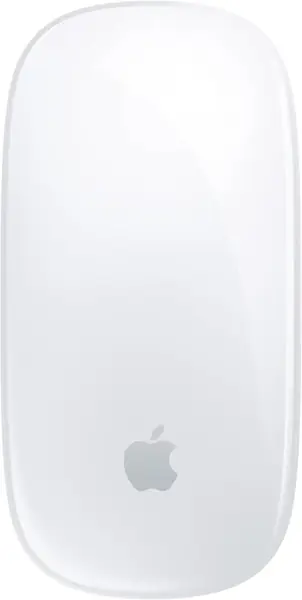
What you get for the money is the cleanest object here. The white Multi-Touch surface is one continuous piece with no wheel and no separate keys, and you scroll and swipe by dragging a finger across it. It pairs automatically with a Mac, charges over the included woven USB-C cable, and runs about a month per charge. It looks like it shipped in the iPad's box, and for a lot of people that's the whole argument.

The surface is also where this mouse divides people. Dragging a finger to scroll is lovely for browsing and fussy when you need to land on one line, and there's no wheel to fall back on when it misreads you. We treat it as the pick for an all-Apple desk and a lighter workload — reading, browsing, slides, email. If your day is spreadsheets and precise selection, the POP or the wegear will serve you better for less.

Pros

  • Multi-Touch surface replaces the wheel
  • Matches Apple gear and charges over USB-C
  • About a month of use per charge

Cons

  • Premium price for a two-button pointer
Our verdict

We recommend it for an all-Apple desk and a lighter workload; the touch surface is elegant, and the bottom-mounted charge port is the price of the design.

Check Latest Price
5

AZTZATZ Wireless Mouse A Cheap Spare

87 /100
TKZ Score Excellent

Key details

Connectivity
Bluetooth 5.2 + 2.4G
Sensitivity
3 DPI levels
Battery
500 mAh rechargeable
Lighting
7-color RGB
View on Amazon

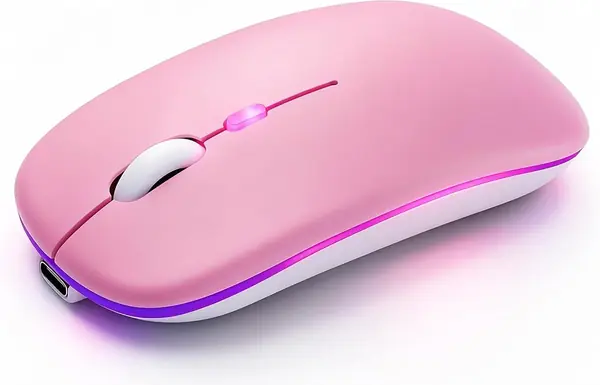
The least expensive rechargeable mouse here is also the only one that lights up. The AZTZATZ runs a 500 mAh battery, pairs over Bluetooth 5.2 or 3.0, and adds a 2.4G receiver that stores inside the base — so it can move between an iPad and an older laptop that has no Bluetooth worth trusting. That combination makes it the obvious second mouse, the one that lives in the bag you take to class and don't worry about.

The spec sheet runs longer than the price suggests. Silent switches take the edge off the clicks, three sensitivity levels let you slow the cursor for detail work, and the lighting is the polarizing part: seven colors cycle automatically while the mouse is on, which is fun on a desk and a distraction in a dark lecture hall. The trade-off is upkeep — a rechargeable means a cable in the bag and a habit of topping it up before a trip, where an AA mouse just keeps going. As a spare, a second mouse for a shared iPad, or the one you don't mind losing, that's a fair deal.

Pros

  • The cheapest rechargeable mouse here
  • Bluetooth or 2.4G with the receiver stored inside
  • Silent clicks and three sensitivity levels

Cons

  • RGB cycles automatically during use
  • One more device to keep charged
Our verdict

The one we keep as a spare: rechargeable, silent, and cheap enough to leave in a second bag, with a light show you either enjoy or ignore.

Check Latest Price

How We Tested Wireless Mice on an iPad

We built the shortlist by gathering every Bluetooth mouse we could find that explicitly listed iPadOS or Apple-device support, then cutting anything that depended on a USB receiver, since a dongle hanging off a tablet defeats the purpose. That left 12 mice, from slim models that slide into a bag pocket to full-size sculpted shapes, running from budget picks to the premium end of the category. Each one spent time paired to an iPad, and most also got paired to a phone and a laptop to see how easily they moved between devices.

Testing happened where iPads actually get used: on a couch with the tablet propped against a cushion, at the kitchen counter, on a train tray table, and in a quiet bedroom while my partner slept. Every mouse got the same week of work — marking up PDFs, scrolling long documents, dragging text around a spreadsheet. We noted whether the cursor kept up when the scroll wheel spun fast, whether a click registered the first time, and whether a hand started to cramp after an hour of editing. The quiet ones got tested in a shared room while someone was on a call.

We paired and unpaired each mouse repeatedly, let the iPad sleep and woke it, and walked out of range to see whether the connection returned on its own or needed a trip to Settings. Battery life we tracked from unboxing to the first low-battery warning. At the end of six months we looked hard at the ones still in rotation — buttons that had gone rattly, scroll wheels with a wobble, finishes worn where a thumb rests — and at whether the extras did anything on iPadOS, since a programmable button that needs desktop software is dead weight here.

How to Choose a Wireless Mouse for Ipad

Start With Bluetooth, Not a Dongle

iPadOS has supported Bluetooth mice since version 13.4, so the pairing question is about the mouse rather than the tablet. A cordless mouse that names iPadOS in its compatibility list — the M240 names iPadOS 17, the POP names 13.4 or later — is the safest kind of listing to buy from. Dual-mode models that ship with a USB receiver still work over Bluetooth, but that receiver has nowhere to live on an iPad, so don't pay extra for it. If a mouse offers a 2.4G receiver and no Bluetooth, it isn't an iPad mouse at all.

Fit Comes Before Features

Compact mice are built for bags, and they suit smaller hands; if your palm is bigger than the shell, your fingers curl under and you feel it by the second hour. Sculpted right-handed models give you somewhere to rest, at the cost of portability and left-hand support. The Magic Mouse takes a third route, flat and touch-based, with the hand resting on top rather than gripping around anything. Pick the shape that matches your longest session, not your shortest trip.

Battery: AA Versus Rechargeable

An 18- to 24-month AA or AAA rating is the least exciting and most useful number on the page: it turns the mouse into something you never think about. Rechargeables trade that for a cable in the bag and a topping-up habit, which is fine at a desk and less fine in a backpack. Check what's in the box as well — the wegear's AA is not included, so the first session can start with a hunt through the kitchen drawer.

Quiet Clicks, DPI, and Pointer Feel

Silent switches cut click noise by roughly 90%, which matters anywhere other people are working, and the well-made ones still feel like real clicks rather than mush. Sensitivity is the spec buyers over-weight. 1000 DPI is plenty on an iPad, and iPadOS has its own tracking-speed setting that does more for cursor feel than a DPI button ever will. Spend the money on quiet switches and a comfortable shell; adjust the speed in Settings.

Frequently Asked Questions

Final Verdict

It's hard to argue with the M240 Silent for an iPad. It pairs with nothing to plug in, clicks quietly enough for a library table, and one AAA lasts about a year and a half — three things you notice every single day rather than once at checkout.

Pay roughly twice as much for the POP Mouse and you get three-device switching and a lot more personality; choose the wegear WL300 if your hand needs a bigger shell to sit on. If neither applies, order the Logitech and stop reading.